

Introduction to Moodle and Its Latest Version
Moodle is a free and open-source learning management system that enables educators to create online courses and learning experiences for students. It was first released in 2002 and has since undergone numerous updates and improvements. The latest version of Moodle, version 3.11.1, was released on June 14, 2021, and comes with several new features and improvements. These include improved messaging, enhanced accessibility features, and new options for managing course groups.
Installing the latest Moodle version is essential to ensure that you have access to the latest features, security patches, and bug fixes. In the next section, I will outline the requirements for installing Moodle with Softaculous in cPanel.
Requirements for Installing Moodle with Softaculous in cPanel
To install Moodle using Softaculous, you must have the following requirements:
- Access to a cPanel account with Softaculous installed.
- A domain name that is pointed to your cPanel account.
- Sufficient disk space and bandwidth to host your Moodle installation.
- The latest version of Moodle available in Softaculous.
Before proceeding with the installation, ensure that you have met all the requirements. You can check with your hosting provider to confirm that your account meets these requirements.
Accessing Softaculous in cPanel
To install Moodle using Softaculous, you need to access Softaculous in cPanel. Follow these steps to access Softaculous:
- Log in to your cPanel account using your username and password.
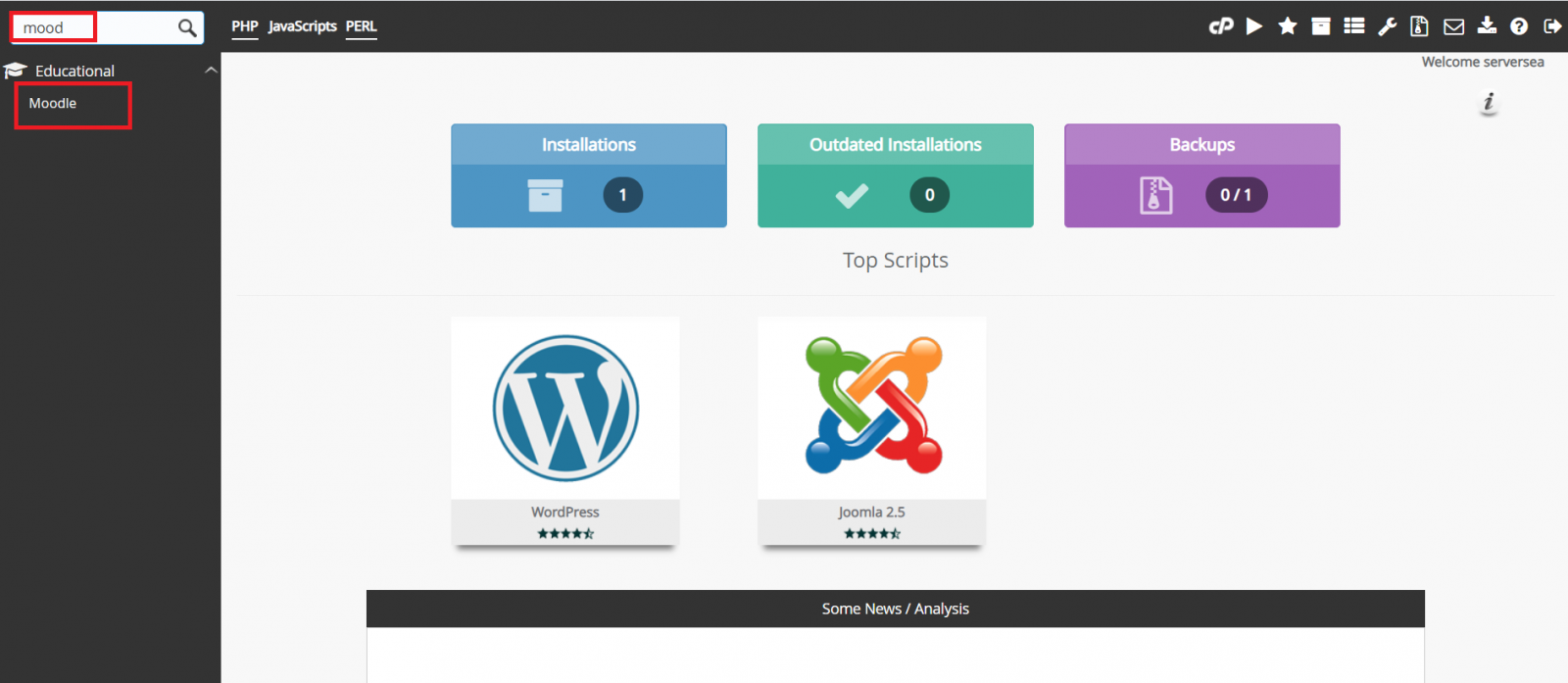
- Scroll to the "Software" section and click "Softaculous Apps Installer."
- On the Softaculous page, click the Moodle icon to launch the installer.
Once you have accessed Softaculous, you can proceed with the installation of the latest Moodle version.
Installing the Latest Moodle Version with Softaculous
To install the latest Moodle version using Softaculous, follow these steps:
- On the Softaculous page, select the latest version of Moodle from the drop-down menu.
- Fill in the required fields, including the installation URL, site name, and administrator username and password.
- Choose the desired language, database name, and database username and password.
- Configure the advanced options, including the installation directory and data directory.
- Click on the "Install" button to start the installation process.
Softaculous will install the latest version of Moodle on your server, and you will receive a confirmation message once the installation is complete.
Configuring Moodle after Installation
After installing Moodle using Softaculous, you will need to configure it to fit your needs. The configuration process involves customizing the site settings, creating courses and categories, and setting up user accounts.
To configure Moodle, log in to your Moodle site using the administrator account you created during installation. You can customize the site settings, add courses and categories, and manage user accounts from there.
Additional Moodle Plugins and Themes
Moodle offers a wide range of plugins and themes that you can use to enhance the functionality and appearance of your Moodle site. These include plugins for multimedia, assessment, communication, and many more.
To access and install Moodle plugins and themes, log in to your Moodle site as an administrator and navigate to the "Site Administration" section. From there, you can install, activate, and configure the plugins and themes that you need for your site.
Troubleshooting Common Installation Issues
While installing Moodle using Softaculous is straightforward, you may encounter some common installation issues. These include issues with the database connection, file permissions, and server configuration.
To troubleshoot these issues, refer to the official Moodle documentation or seek help from your hosting provider. Softaculous also offers a support forum where you can get help from other users and the Softaculous team.
Advantages of Using Softaculous for Moodle Installation
Using Softaculous to install Moodle has several advantages, including:
- Ease of installation: Softaculous simplifies the installation process, making it easy for even beginners to install Moodle.
- Time-saving: Installing Moodle manually can be time-consuming, but Softaculous automates the process, saving you time and effort.
- Security: Softaculous ensures that you have the latest version of Moodle and that it is installed correctly, reducing the risk of security vulnerabilities.
Other Methods to Install Moodle
Apart from using Softaculous, there are other methods that you can use to install Moodle, including:
- Manual installation: This involves downloading the Moodle package from the official website and installing it manually on your server.
- Command-line installation involves using SSH to install Moodle on your server using command-line tools.
While these methods give you more control over the installation process, they require more technical expertise and may take longer than using Softaculous.
Installing the latest version of Moodle is essential to ensure that you have access to the latest features and security patches. Using Softaculous to install Moodle simplifies the process and saves time and effort. Following the steps outlined in this article, you can easily install the latest Moodle version using Softaculous and create online courses for your students.